Google Docs
- 4.7
- Rating
- 1.00B
- Installs
- Free
- Price
 Analysis by App-foxy
I use Google Docs when a document needs to move between people without turning into a mess of attachments, renamed files, and “which version is current?” messages. It is a free productivity app from Google LLC, and its biggest strength is simple: a household, study group, or small team can work on the same document from different devices while keeping the conversation close to the text.
That sounds ordinary now, but it matters in daily life. A shared shopping plan, a school project, travel notes, a household checklist, or a document prepared for an appointment can all live in one place. I find it especially useful when several people contribute at different times rather than sitting together and editing simultaneously. The app is not exciting, but it is dependable, familiar, and flexible enough to become a practical shared workspace.
How Google Docs works in a shared household
A realistic example is a family organizing a move. One person writes down rooms and tasks, another adds measurements, and someone else checks what still needs to be bought. Instead of sending separate notes through a chat, everyone can add information to the same document. On a phone, I can quickly correct a line or add a reminder; on a larger screen, I can reorganize the document and make it easier to read.
In-Depth Coverage of Google Docs
This kind of use reveals an important distinction: Google Docs is not primarily a household task manager. It is a flexible document editor that can be adapted to household coordination. You decide whether a page becomes a checklist, a table of responsibilities, a running note, or a more formal document. That freedom is useful, but it also means the quality of the result depends on how clearly the document is organized.
I recommend starting shared documents with a short purpose statement at the top. For example, write what the document is for, who should update it, and whether completed items should be deleted or left visible. This small habit prevents the page from becoming a pile of unrelated comments. With several contributors, simple headings and consistent wording are more valuable than decorative formatting.
The app is also a good fit for households where people use different devices. One person may prefer a phone, another a tablet, and another a computer. The same document can be opened and edited across those situations, which removes much of the friction from casual collaboration. I would still choose a computer for a long document, but the mobile app is convenient for reviewing, correcting, and adding short sections.
For a shared recipe collection, I like giving each recipe the same structure: ingredients, preparation, substitutions, and notes. For travel planning, separate sections for transport, accommodation, daily plans, and questions work better than one long stream of text. These are not special templates that solve everything automatically; they are practical ways to use the editor without asking it to behave like a different kind of app.
Keeping personal and shared work separate
The most important setup decision is deciding which account owns a document and who receives access. In a household, people often share devices, but that does not mean every document should be shared. A personal journal, private application draft, or document containing sensitive details should remain separate from a family planning page.
I would avoid creating one shared account for everyone. Individual accounts make it easier to understand who is editing and reduce the chance that private material is mixed with household documents. A shared device can be convenient, but the account currently active in the app deserves attention before opening or editing anything. Switching between accounts casually is a good way to place a personal note in the wrong workspace.
Before handing a phone or tablet to someone else, I check which document is open and which account is active. This takes only a moment, yet it is one of the most useful habits for shared-device use. I also prefer giving access to a specific person rather than treating a document as openly available. The right boundary depends on the document, but access should be intentional rather than accidental.
Another practical boundary is editing responsibility. If everyone can change everything, a shared page can become confusing. For a household list, that may be fine. For a document being submitted to a teacher or used for an important appointment, I would ask contributors to add suggestions or comments instead of rewriting the main text without warning. A short note at the top can explain this rule.
Google Docs is strong when the group agrees on a basic process, but it does not replace that process. The app can hold the document; it cannot decide whether a family member should edit the budget section or whether an old instruction is still valid. That judgment remains with the people using it.
Coordination without losing the thread
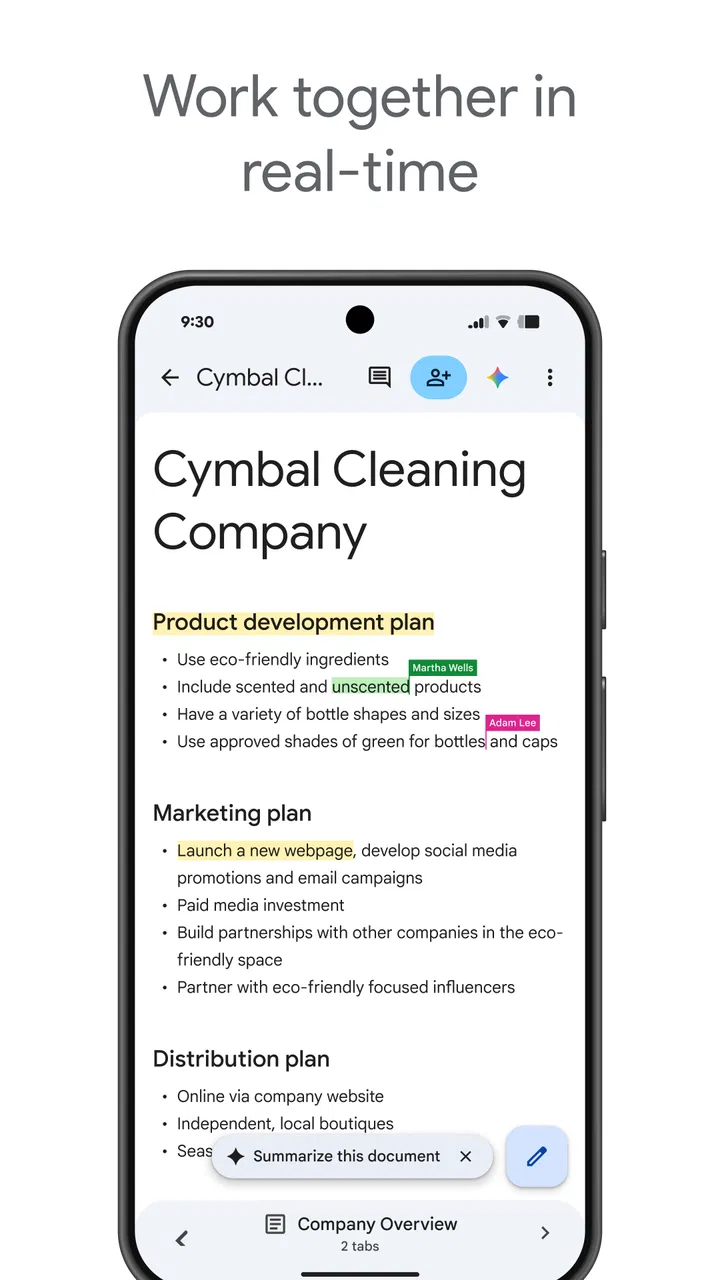
For collaboration, the most useful feature is the ability to work in one document rather than circulate copies. I can write a draft, another person can improve a section, and a third person can review the result without forcing everyone to merge separate files manually. This is particularly helpful for school assignments, shared letters, and plans that need several rounds of revision.
I find comments more valuable than simply changing someone else’s wording. If a sentence is unclear, a comment can explain the issue without destroying the original thought. That creates a cleaner discussion and lets the document remain readable. Once a decision is made, the main text can be updated and the discussion can be resolved instead of spreading through a separate chat.
Suggestions are useful when the writer should have the final say. They create a safer review style for a student, a household member preparing an important message, or anyone who wants feedback without losing control of the document. I would not use suggestions for every tiny grocery-list change, but they are worthwhile when wording matters.
You May Also Like

 AccuWeather: Weather Radar
AccuWeather Review: A Quick, Clear Forecast for Everyday Decisions
For everyday plans, the best forecast is the one you can understand quickly. AccuWeather makes rain timing, radar, and local conditions easy to act on, with a few trade-offs.

 Hill Climb Racing
Why Hill Climb Racing Still Turns Crashes Into One More Run
A tiny car, a bumpy hill and one more upgrade: Hill Climb Racing keeps resurfacing because its simple chaos makes every near-miss feel personal.

 AliExpress - Shopping App
AliExpress Makes Global Shopping Feel Personal, but Shoppers Bear the Risk
AliExpress turns a global marketplace into a pocket-sized discovery engine. Its reach is useful, its shopping loop compelling, and its trade-offs easy to miss.

 Lords Mobile: Kingdom Wars
Lords Mobile Is a Kingdom-Building Routine, Not a Quick Match
A case-by-case verdict on the building, battles, device demands, and social commitments that make Lords Mobile rewarding for some players and exhausting for others.

 PDF Scanner app - TapScanner
TapScanner Makes Paperwork Easier to Capture, Check, and Share
TapScanner makes scanning with a phone feel less like a rescue operation and more like a dependable step in getting work done. Its capture tools are useful, though not flawless.

 Block Blast!
Block Blast! Shows How Much a Puzzle Game Can Leave Out
A quiet grid game shows why puzzle players increasingly value instant clarity, repeatable skill and low-pressure play—and where the genre still needs to catch up.
More From Our News Desk
View All News


A less obvious strength is that the document can serve as both the work area and the record of decisions. In a group chat, useful information disappears under newer messages. In a document, an agreed plan can stay beside the details that support it. I often recommend adding a small “decisions” section near the top, with dates or names only when they genuinely help. This prevents old suggestions from being mistaken for current instructions.
There is a trade-off, though. A document can become too long and too permissive. If a household keeps adding notes without removing outdated material, nobody knows which section to trust. I prefer archiving old plans in a separate document and keeping the active page focused. Google Docs gives you the space to store detail, but good maintenance is still necessary.
Using it with children and teenagers
The Everyone age classification makes the app broadly approachable, but an age label is not a substitute for household judgment. A child may be able to use the editor for a homework outline or a creative story, while an adult should still decide which documents are shared and with whom. The important question is not only whether the app is easy to open, but whether the child understands the difference between a private draft and a shared document.
For a teenager working on a group assignment, I would explain account boundaries before collaboration begins. They should know which account they are using, what the document contains, and whether their classmates need editing access or only the ability to read. This is a useful digital habit beyond Google Docs: access should match the task.
I also think families should agree on how feedback is given. A shared document can make criticism feel very direct because edits appear beside a person’s work. Comments that explain a change are healthier than silently replacing large sections. For younger users, an adult can review the sharing arrangement and help establish a simple rule: do not add private information to a document just because it is convenient.
Google Docs is not the best choice when a child needs a tightly structured learning environment, guided lessons, or a dedicated family organizer. It is a general-purpose editor. That makes it adaptable, but it also means the adult has to provide the structure. For a short writing exercise, this is manageable. For ongoing family routines, another tool designed around tasks or calendars may be clearer.
What I would use it for, and where I would look elsewhere
I would choose Google Docs for writing-heavy collaboration: a shared plan, a school report, meeting notes, a household reference page, or a document that needs comments and revisions. Its free price also makes it easy to recommend when the goal is simply to create and collaborate without adding a subscription to the household budget.
It compares well with ordinary word-processing apps when several people need the same live document. Traditional desktop editors can be excellent for complex formatting and offline work, but passing files around creates more opportunities for conflicting versions. Google Docs is more convenient when the document is still changing and several people need access.
On the other hand, I would not use it as my first choice for a visual project, a database of household items, or a reminder system that depends on notifications and recurring tasks. A spreadsheet is better for structured numbers and comparisons. A calendar is better for time-based commitments. A dedicated task app is usually better for assigning work, tracking due dates, and showing what is overdue. Google Docs can imitate some of these workflows, but imitation is not the same as purpose-built design.
There is also a formatting trade-off. The app is comfortable for normal documents, but people who need highly controlled page design, elaborate layouts, or advanced publishing tools may find it less satisfying than a specialized desktop program. I would draft and collaborate in Google Docs, then move to a more advanced tool if the final result depends heavily on precise visual presentation.
Offline situations deserve a practical mention. I would not assume that every shared workflow will feel identical without a reliable connection. Before traveling or entering a place with uncertain access, I open important documents in advance and make sure I know what information I need. For urgent work, I keep a separate local copy or note when appropriate. The app is excellent for connected collaboration, but a backup plan is sensible when the document matters.
Small habits that make the app better
My first tip is to name documents for retrieval, not amusement. “Move plan,” “science project draft,” or “doctor questions” is more useful than a vague title. A clear name matters even more when multiple people create documents in the same account space or when a household has several similar plans.
My second tip is to separate reference material from active decisions. A long document that contains old options, current choices, and background research becomes difficult to use on a phone. I prefer a short current section at the beginning and supporting detail below it. This keeps the mobile experience practical without throwing away useful context.
My third tip is to use comments for questions that need an answer and ordinary text for decisions that have already been made. Mixing both types makes a document feel unfinished. Once a question is settled, I remove or resolve the discussion and update the main wording. That simple cleanup is what turns collaboration into a usable final document.
My fourth tip is to review sharing before a document becomes important. A casual planning page may begin with two contributors and later be sent to a teacher, landlord, colleague, or relative. Checking access at that moment prevents an old arrangement from continuing by habit. I treat sharing as part of document maintenance, not as a one-time setup step.
Finally, I would keep sensitive information to the minimum needed for the task. A household document does not need every personal detail to be useful. For example, a list of questions for an appointment can be effective without copying an entire private history into a shared page. This is good organizational practice and makes the document easier for the intended readers to understand.
My household verdict
Google Docs has earned its place as a practical everyday editor because it handles the awkward middle ground between private writing and group coordination. It is simple enough for a quick note, yet capable of supporting comments, revisions, and longer documents when a project grows. The app comes from Google LLC, carries a 4.7 average from around 2.5 million ratings, and has passed one billion installs, which reflects how widely it has become part of people’s normal document habits.
It was released on April 30, 2014, and the core idea still feels relevant: create a document, let the right people work with it, and avoid unnecessary copies. I appreciate that it is free and rated for Everyone, but those facts do not remove the need for sensible account boundaries. A shared device should not automatically mean a shared account, and a child-friendly age rating should not be confused with built-in family supervision.
For a household, I recommend it when the main problem is scattered writing and coordination. It is especially good for plans that change, documents that need several contributors, and situations where people use different devices. I would skip it when the real need is scheduling, task automation, advanced design, or a tightly controlled environment for children.
My practical recommendation is to treat Google Docs as a shared worktable, not as the entire household operating system. Give each document a clear purpose, keep personal work separate, use comments when discussion is needed, and clean up old material. With those habits, the app becomes much more than a blank page: it becomes a calm place for a family or small group to write, decide, and keep track of what matters.
After using it across ordinary writing and shared planning, I would recommend Google Docs to anyone who wants dependable document collaboration without paying for the basic experience. Its limitations are real, but they are easier to manage when you choose it for the work it does best.
FAQs for Google Docs
01What features does Google Docs offer for collaboration?
Google Docs provides robust collaboration features, allowing multiple users to edit a document simultaneously. Users can see real-time changes, leave comments, and suggest edits. It also includes version history to track changes over time, making it an excellent tool for team projects and collaborative work.
02Is Google Docs available offline?
Yes, Google Docs can be used offline. Users need to enable offline access in their Google Drive settings. Once enabled, they can view and edit documents without an internet connection. Changes made offline will sync automatically when the device reconnects to the internet.
03How secure is my data on Google Docs?
Google Docs uses encryption to protect data both in transit and at rest. Google’s security protocols ensure that your documents are stored safely. Users can also set specific sharing permissions to control who can view or edit their documents, adding an extra layer of security.
04Can Google Docs integrate with other applications?
Yes, Google Docs integrates seamlessly with various applications. It works well with other Google Workspace apps like Sheets and Slides. Additionally, it supports add-ons and integrations with third-party apps such as Microsoft Office, Slack, and Trello, enhancing its functionality.
05Is Google Docs free to use?
Google Docs is free for individual users with a Google account. However, businesses can opt for Google Workspace, which offers additional features such as enhanced security, more storage, and dedicated customer support for a subscription fee. This makes it suitable for both personal and professional use.
Pros
- Seamless collaboration with real-time editing.
- Accessible from any device with internet.
- Automatic saving prevents data loss.
- Wide range of formatting tools available.
- Easily integrates with other Google services.
Cons
- Requires internet for full functionality.
- Limited features compared to desktop apps.
- Formatting can shift when exporting.
- Some features need additional plugins.
- Offline editing has limited capabilities.

Google Docs
Gallery